Monitor and control devices
Use the App to view sensors and operate actuators for the device selected in the header.
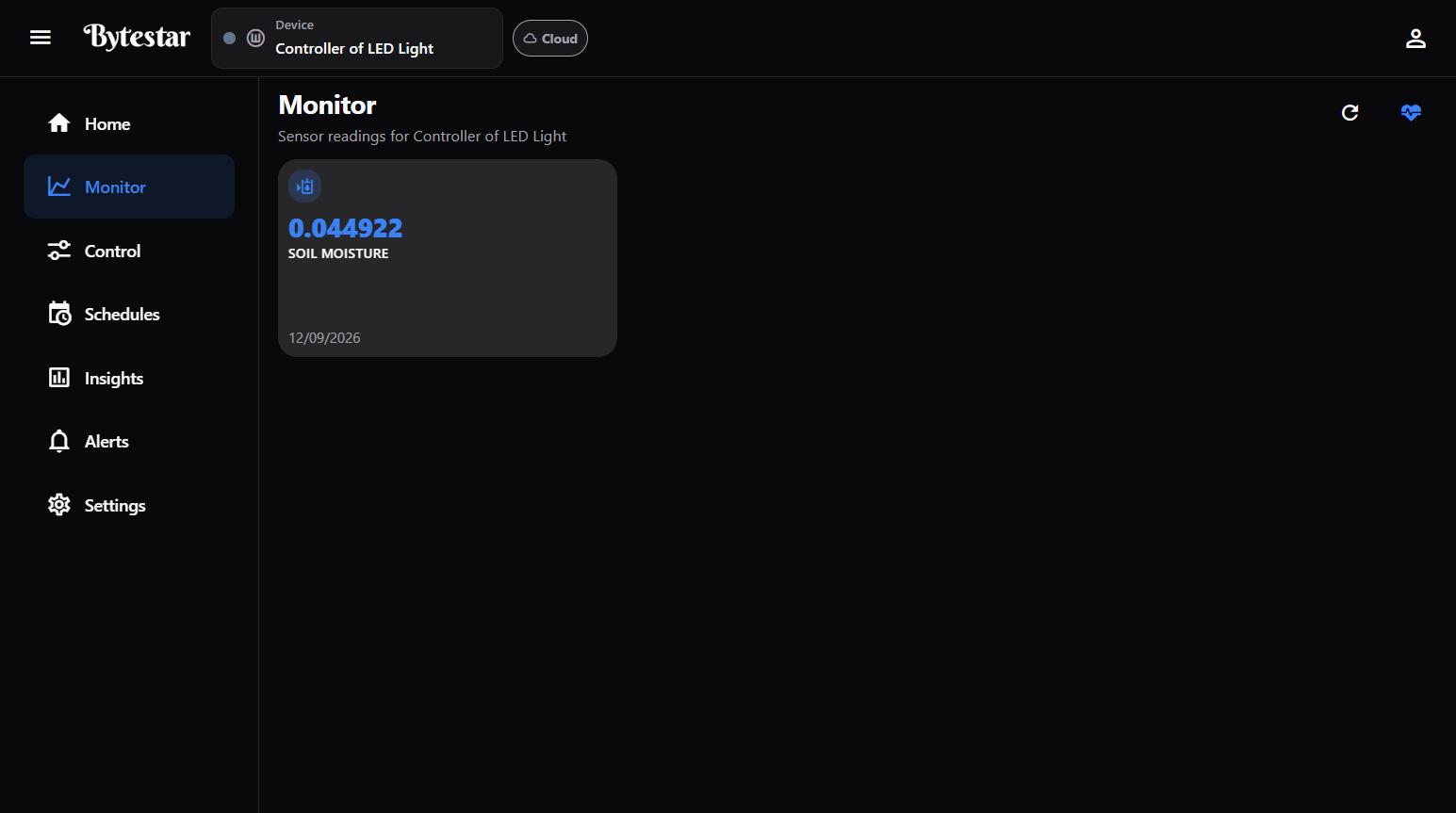
Monitor — live readings for the selected device.
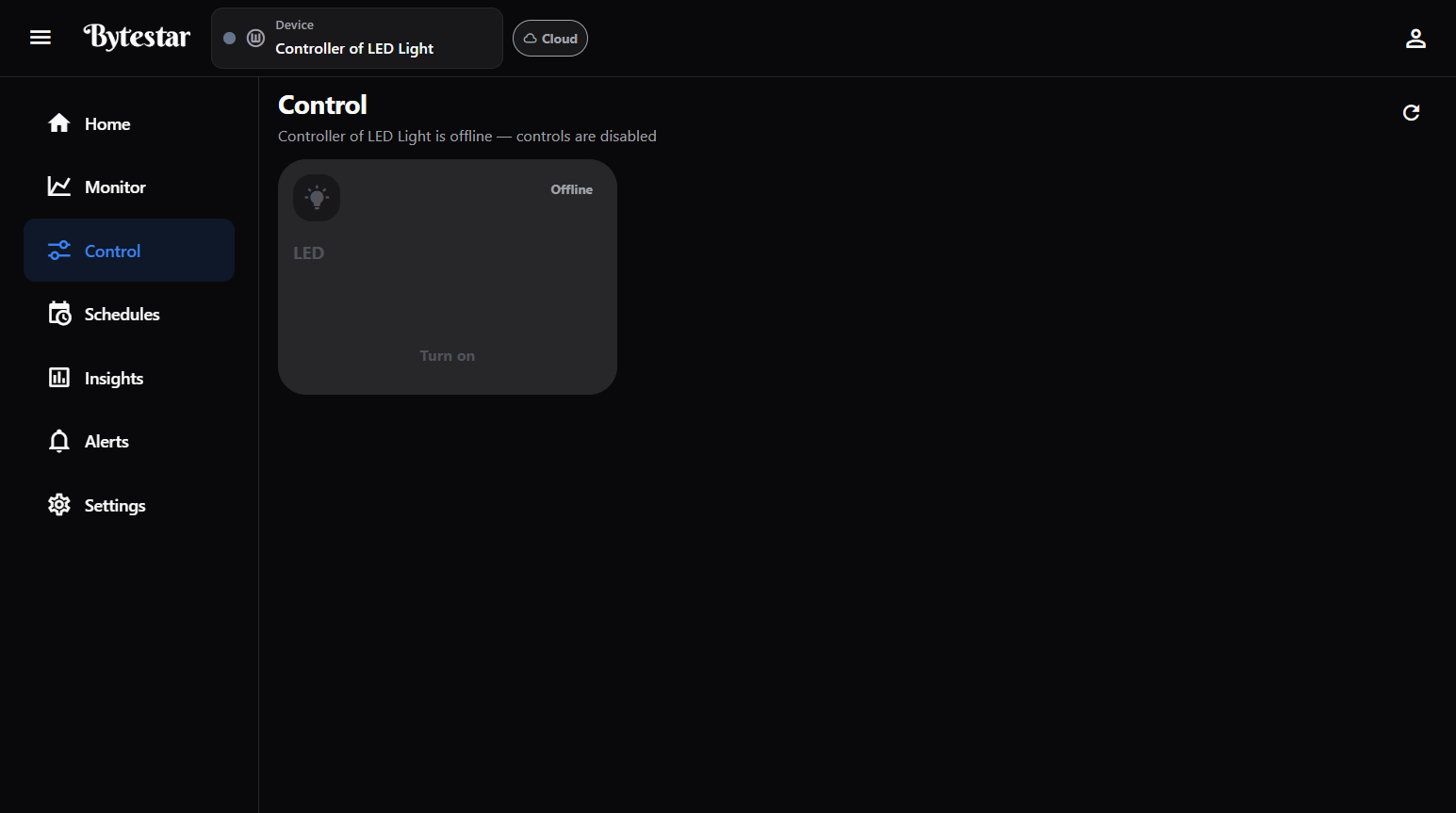
Control — turn actuators on or off (disabled while the device is offline).
Choose a device
- Open the Device control in the header.
- Search or pick a controller (for example your greenhouse kit or lighting controller).
- Check the online/offline badge and Cloud / Nearby mode.
All Monitor and Control values apply to that selection.
Monitor
Path: left nav → Monitor (or Home → Quick action Monitor)
- Live sensor cards (for example Temperature, Humidity) with last update time
- Refresh to pull the latest values
- Device health for connectivity / health summary
- Tap a sensor for history (availability depends on your plan and data)
While offline, the App may still show the last known values; treat them as not live until the device reconnects.
Control
Path: left nav → Control (or Home → Quick action Control)
Typical controls (exact list depends on your kit):
| Control type | What you do |
|---|---|
| Switch / relay | Toggle on or off (for example Water Pump, Grow Light) |
| Dimmer / level | Raise or lower brightness or intensity (for example LED Dimmer %) |
Rules:
- Controls are disabled while the device is offline (banner: “controls are disabled”).
- Commands need permission for that space (Viewer = look only).
- Failed or unverified commands appear under Alerts.
What you can and cannot do
| You can | You cannot (Help Center) |
|---|---|
| Turn controls on/off, set levels | Define new actuator/sensor types in the platform catalog |
| Use scenes, schedules, automations | Perform ByteStar staff / system-admin inventory setup |
| Bind widgets to existing sensors/actuators | Write custom firmware drivers |
If a control is missing, the kit may not include it yet, or you lack permission. Ask a space Admin / Owner, or support for kit setup.
Nearby (local control)
For low-latency control on the same network or Bluetooth, tap Cloud in the header or open Settings → Nearby connection. See Nearby.