Using the App — Home and navigation
This page maps the live ByteStar App (Home) so you know where every feature lives.
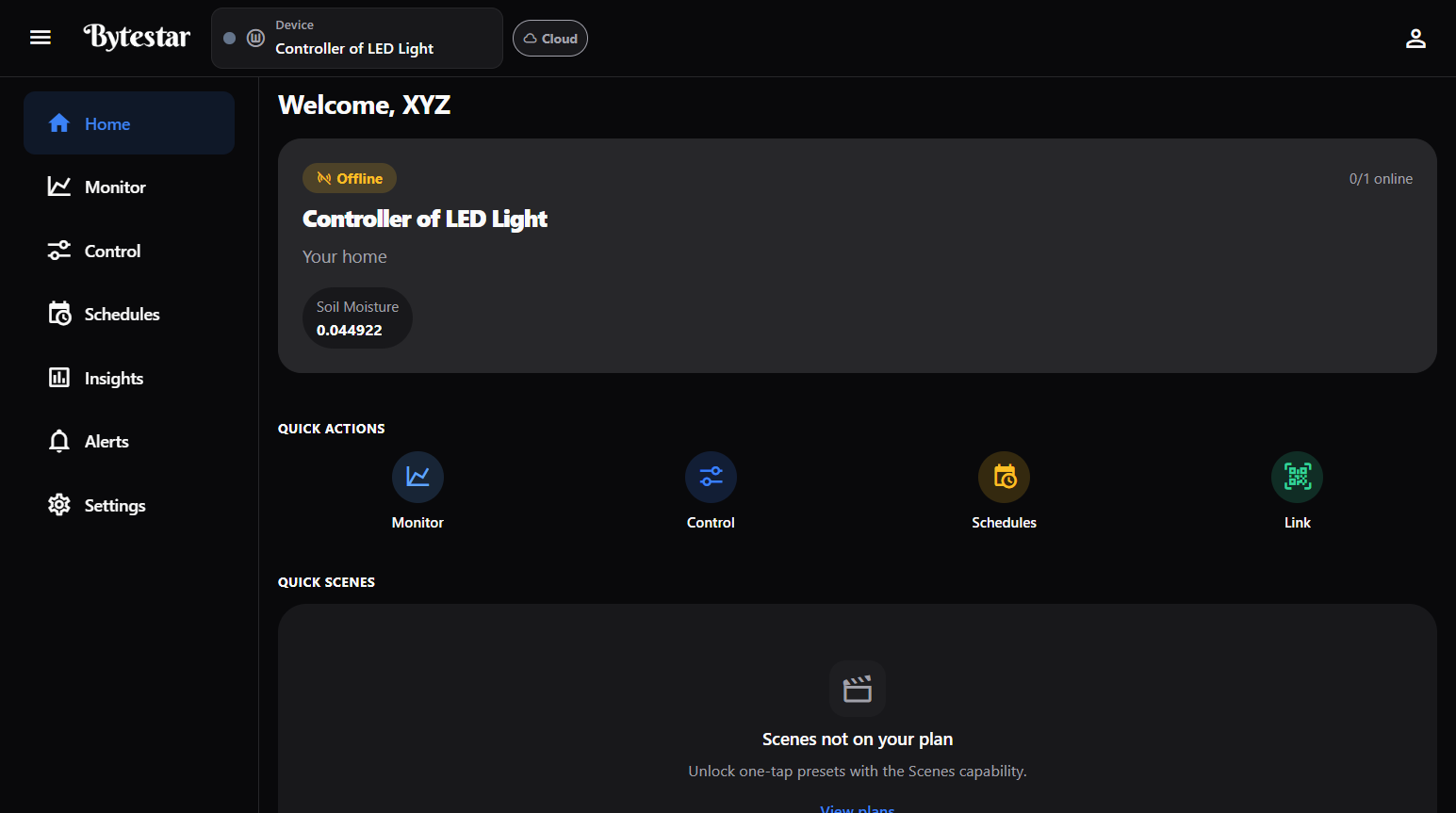
Header (always visible)
| Control | What it does |
|---|---|
| Menu | Open or collapse the left navigation |
| Device | Pick which controller you are working with (searchable list of your linked devices) |
| Cloud | Current connection mode. Tap to connect Nearby for local control. Long-press for Nearby settings |
| Account | Quick menu: Settings, Sessions, Change password, Alerts, Logout |
Everything below (Monitor, Control, Schedules, and so on) applies to the device selected in the header.
Left navigation
| Page | Purpose |
|---|---|
| Home | Welcome, status card, quick actions, quick scenes, dashboards, activity |
| Monitor | Live sensor readings |
| Control | Manual actuator control |
| Schedules | Time-based automation |
| Scenes | Multi-actuator presets |
| Automations | Sensor-threshold rules |
| CCTV | Live camera feeds (when available) |
| Energy & anomalies | Power / anomaly views (when available) |
| Insights | Sensor trends (24h / 7d / 30d) |
| Alerts | Inbox for device alerts and account messages |
| Settings | Account, home & people, devices, billing, Widget Studio |
CCTV and Energy & anomalies appear in the navigation when your account/device supports them. Climate-only kits often use Insights instead of Energy.
Home sections
Welcome & device card
- Greeting with your display name
- Selected device name, online/offline badge
- How many related endpoints are online (for example
0/14 online) - Snapshot sensor values (for example Temperature, Humidity)
- Space / home label (for example “Your home”)
Quick actions
Shortcuts to everyday tasks:
- Monitor — live sensor readings
- Control — lights, pumps, and other actuators
- Schedules — automate on a timetable
- Link — scan or enter a setup code to claim another device
Quick scenes
Start scenes (for example Away, Home) without leaving Home. Tap Manage scenes to open the full Scenes page.
Scenes need the device online to activate. You can still create and edit scenes while offline.
Dashboards
Pin a full dashboard screen so it can replace or sit beside Home. Design layouts in Widget Studio (Settings → Widget Studio or Dashboard screens).
Activity
Recent alerts and account activity. When empty: “You’re all caught up.”
Page tips
The App shows short tips on each screen (for example “Your home at a glance”). Use Don’t show again or Continue. Reset tips later under Settings → Show page tips again.